Search "time tracking app" and you get dozens of near-identical tools, most claiming to be the simplest, the most accurate, or the best for teams. Choosing between them is less about finding the "best" one and more about matching features to how your team actually works. This guide covers what to check before you pick one.
What a time tracking app actually does
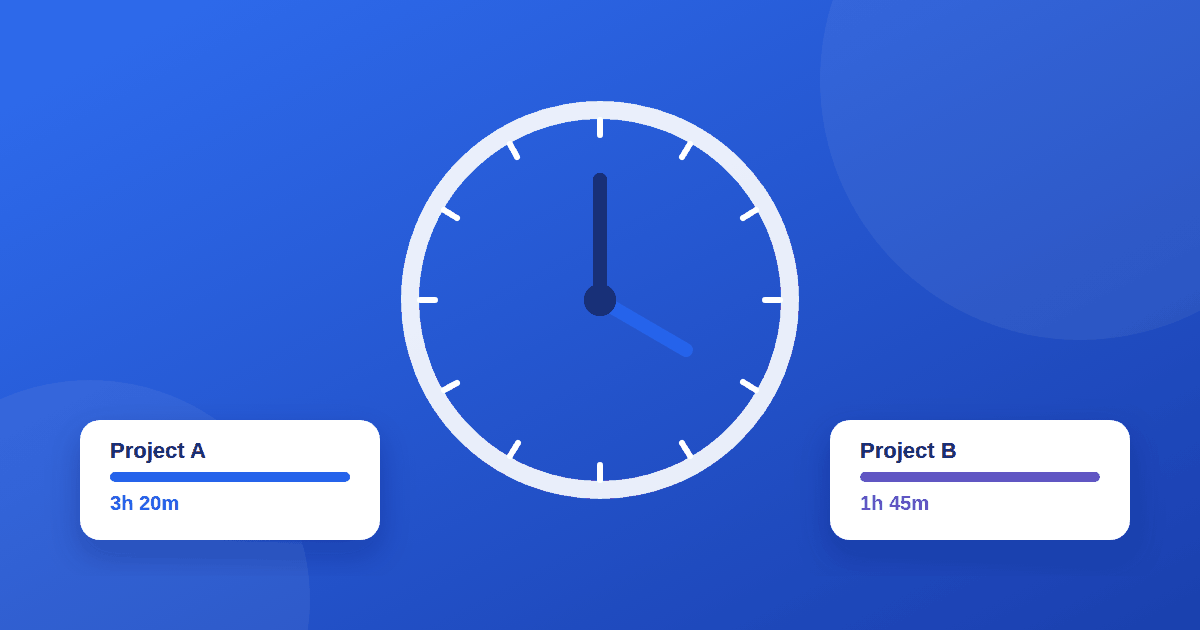
At its core, a time tracking tool records how long someone spends on a task, project, or client. Beyond that basic function, tools differ in:
- How time is captured: a manual start/stop timer, automatic activity detection, or manual entry after the fact
- What it reports: hours per project, per client, per team member, or all three
- What it connects to: invoicing, payroll, project management, or none of these
- Who it's built for: freelancers billing clients, agencies tracking utilization, or companies tracking attendance
Knowing which of these matters to you narrows the field fast.
Step 1: Decide why you're tracking time
The reason changes which features matter:
| Reason | What to prioritize |
|---|---|
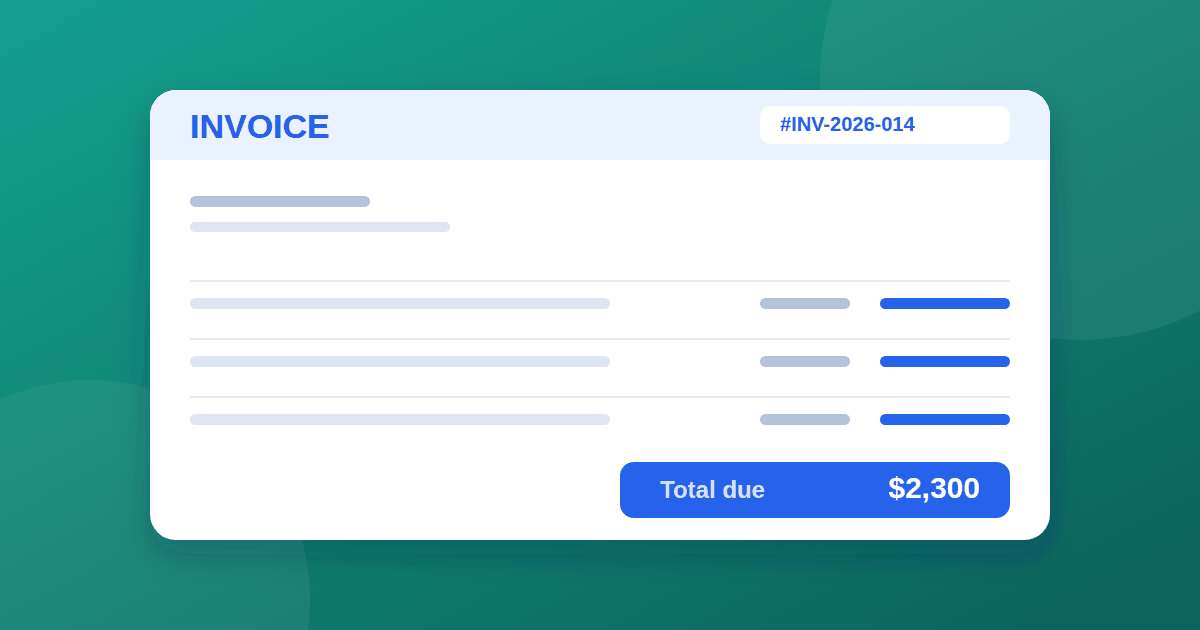
| Billing clients accurately | Project and client tagging, invoice export |
| Understanding where team time goes | Reporting and dashboards |
| Payroll or attendance | Clock-in/out, approvals, integrations with payroll |
| Personal productivity | Simplicity, minimal setup, gentle reminders |
A tool built for agency billing will feel like overkill for a solo freelancer, and a simple personal timer won't satisfy a finance team that needs approval workflows.
Step 2: Manual vs automatic tracking
- Manual (start/stop): the person starts a timer when they begin a task. Simple and private, but relies on people remembering to start and stop it.
- Automatic: the app detects app and website usage in the background and assigns time to categories. More accurate for capturing forgotten timers, but raises privacy questions your team should agree to upfront.
- Retrospective entry: logging hours at the end of the day or week from memory. Least accurate, but requires no habit change.
Some tools offer all three. Decide which fits your team's culture before comparing vendors, since this affects adoption more than any other feature.
Step 3: Check core features
- Project and task tagging: can time be split cleanly by client or project?
- Reporting: can you export a clear report per client, per person, or per period?
- Idle detection: does it prompt when the timer has been running with no activity? The Pomodoro Technique is a common time-management method some tools build reminders around.
- Team visibility: can managers see logged time, and is that visibility appropriate for your culture?
- Mobile app: does it work if your team isn't always at a desk?
- Offline support: does it keep tracking without an internet connection and sync later?
Step 4: Check the integrations you actually need
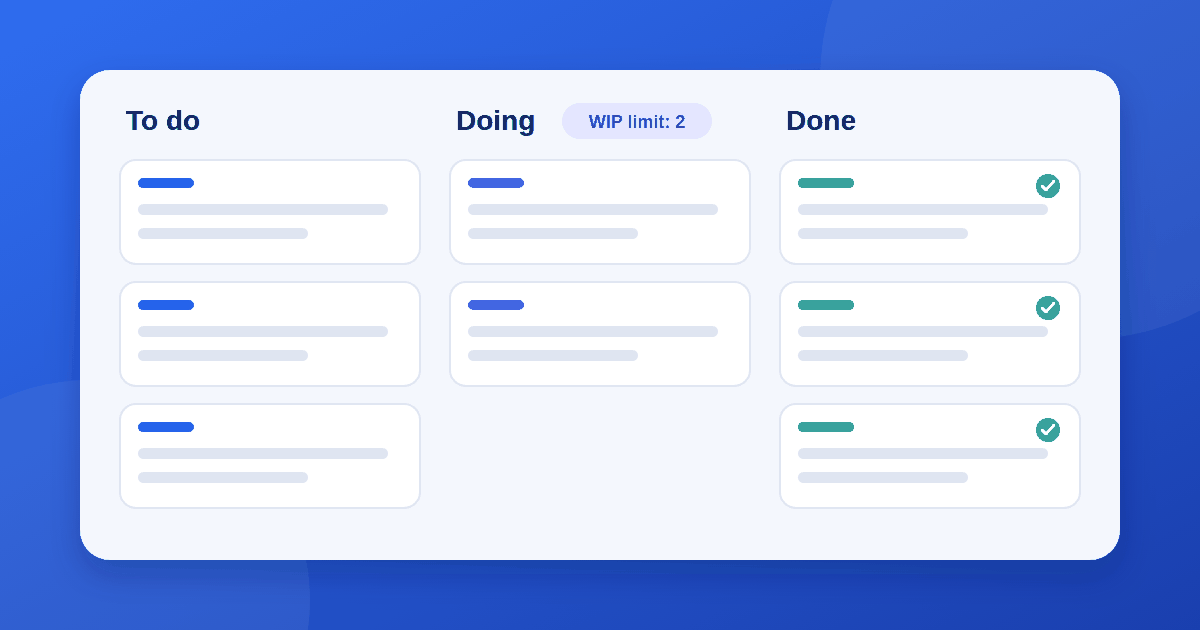
A time tracker rarely works alone. Common connections include invoicing tools, project management software, and payroll systems. If you already use a kanban board for task management, check whether the time tracker can log hours directly against the same cards, so you are not duplicating task lists in two systems.
Step 5: Understand the pricing model
Time tracking tools are usually priced per user per month, though some offer a free tier for individuals or very small teams. Before you commit:
- Check what the free tier actually limits (users, projects, or history length)
- Confirm whether reporting or integrations are locked behind a higher plan
- Model the cost at your expected team size, not just today's headcount
Our guide to per-seat vs usage-based SaaS pricing explains how per-seat pricing in particular can cost more than it looks once you account for inactive users.
Step 6: Trial it with a real week of work
A free trial reveals more than any feature list. During the trial:
- Have at least two or three team members use it for a full week, not just one person
- Try the mobile app if fieldwork or travel is part of the job
- Pull an actual report and check whether it answers the question you need answered (client billing, utilization, or payroll)
- Ask what happens to historical data if you cancel
Our 10-check guide to evaluating SaaS tools covers the wider due-diligence checklist, including data export and contract terms, which apply just as much to a time tracker as to any other SaaS purchase.
Free vs paid time tracking apps
Free time tracking apps and free tiers of paid tools can work well for individuals or very small teams, but usually cap the number of projects, users, or how far back your history goes. If billing accuracy or team reporting matters to your business, a paid plan with proper client tagging and export is usually worth the cost. If your only need is a personal reminder to log hours, a free tool is often enough.
Common mistakes when choosing a time tracker
- Picking the most feature-rich tool when the team only needs a simple timer
- Ignoring how the team feels about automatic activity tracking before rolling it out
- Not testing the mobile app if the team works away from a desk
- Choosing a tool with no export options, making it hard to switch later
- Rolling it out to the whole team without a short trial period first
The takeaway
The best time tracking app is the one that matches why you're tracking time in the first place, not the one with the longest feature list. Decide your reason for tracking, choose manual or automatic capture based on your team's habits, check the integrations and pricing model against your real usage, and run a short trial with real work before committing.
Frequently asked questions
Is time tracking software accurate? Manual timers are only as accurate as the habit of starting and stopping them. Automatic tracking is generally more accurate for capturing forgotten sessions, but can misclassify activity if categories aren't set up well.
Will my team resist time tracking? Resistance is common with automatic or highly visible tracking. Being transparent about why you're tracking time, and what will and won't be visible to managers, reduces pushback.
Can I switch time tracking tools later without losing data? Check the export options before you commit. A tool that only lets you view data in its own dashboard, with no CSV or API export, makes switching costly later.