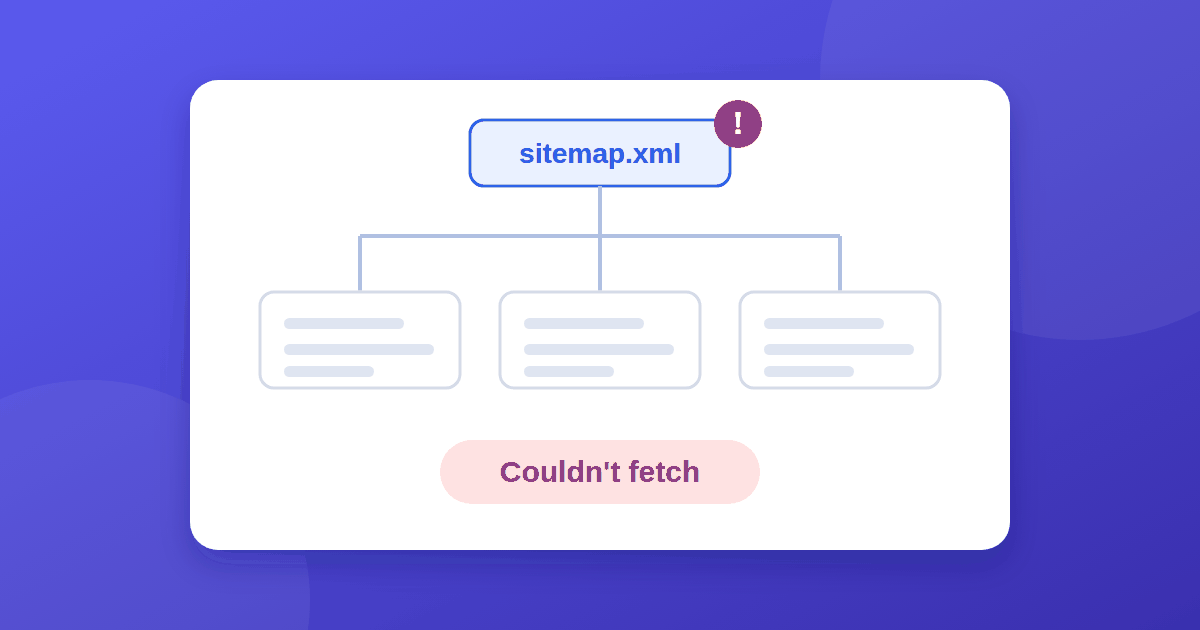
You submit your sitemap in Google Search Console and the status reads Couldn't fetch. The Type column says "Unknown", the discovered pages count is 0, and nothing tells you why. A sitemap that couldn't be fetched is one of the most common early frustrations with a new site, and it is often less serious than it looks.
What "Couldn't fetch" means
In the Sitemaps report, each file has a status such as Success, Has errors, or Couldn't fetch. Couldn't fetch means Google was unable to retrieve the file when it tried. Right after a first submission, it can also mean Google simply has not processed the file yet, which is why the fields stay empty.
It does not mean your pages will not be indexed. Google can find pages through links and through the Sitemap: line in your robots.txt. The sitemap is a helper, not a requirement. See Google's sitemap overview for how Google uses it.
Common causes
- Not processed yet. The most common cause for a brand-new submission. Wait 24 to 48 hours before assuming a problem.
- Wrong URL or a 404. A typo, a wrong folder, or a file that was not uploaded.
- Property mismatch. The sitemap URL must belong to the property you submitted it in.
httpversushttps, orwwwversus non-www, is a frequent culprit. - Redirects. If the sitemap URL redirects, submit the final address instead. If a redirect rule is looping, see how to fix a redirect loop in .htaccess.
- Blocked access. A robots.txt rule, a security plugin, a firewall, or CDN bot protection can stop Googlebot.
- Server trouble. 5xx errors, timeouts, or caching rules that return the wrong response to crawlers.
- Invalid or oversized file. The sitemap protocol allows up to 50,000 URLs and 50 MB uncompressed per file. Broken XML also causes read failures. The sitemaps.org protocol has the rules.
- Password protection. Staging or protected sites cannot be read.
How to fix it, step by step
- Open the sitemap in a private window. Visit
https://yourdomain.com/sitemap.xml. You should see XML, not an error or a redirect. - Check the exact URL. It must match your property and be the final address.
- Read your robots.txt. Make sure nothing disallows the sitemap, and that a line like
Sitemap: https://yourdomain.com/sitemap.xmlis present. - Test it with Google. Paste the sitemap URL into the inspection bar and choose Test live URL. A sitemap is not an indexable page, so "URL is not on Google" is normal. What you want is a successful page fetch in the live test.
- Validate the XML. A broken tag or unescaped character can stop parsing. An online sitemap validator will point to the line.
- Rule out blocking. Check your host's firewall, any security plugin, and CDN bot settings. Googlebot must be allowed.
- Resubmit once, then wait. Remove the entry, add it again as
sitemap.xml, and give it a day or two. Repeated resubmitting does not help.
You do not need to use "Request indexing" on the sitemap file itself. Use it for your pages instead.
What to do while you wait
Do not let a pending sitemap stall everything else:
- Request indexing for your homepage and best pages, using the URL Inspection tool.
- Link your key pages from the homepage and navigation.
- Read how long indexing typically takes in how long Google takes to index a new website.
- If you still see no data, work through 7 reasons for no impressions.
Quick reference
| Symptom | Likely cause | First action |
|---|---|---|
| Type "Unknown", 0 pages, just submitted | Not processed yet | Wait 24 to 48 hours |
| Sitemap opens fine in browser | Google-side or access issue | Run Test live URL |
| Sitemap URL redirects | Wrong final URL | Submit the final URL |
| Live test fails | Firewall, robots, or server | Check blocking and logs |
| "Has errors" instead | Invalid XML or bad URLs | Validate the file |
The takeaway
Couldn't fetch is usually a timing or access problem, not a verdict on your site. Confirm the file loads, matches your property, is not blocked, and is valid XML. Then resubmit once and wait a couple of days. Meanwhile, request indexing for your important pages so your content does not depend on one file. Technical basics like this are also part of our on-page SEO checklist.