"Classroom G+" is a search phrase, not a feature of Google Classroom or any school platform. People type it when they want game sites that suit a school-style network, which is why it appears next to terms such as "unblocked games G+". The real question behind it is why a school blocks games in the first place. The short answer is that filtering is a legal and practical requirement for most US schools, and games are one of the categories schools commonly restrict. This guide explains the law, how filters work, and what students, parents and teachers should know. It does not cover ways to get around filters.
What "Classroom G+" means
Google Classroom is a real learning platform used by schools. "Classroom G+" is not part of it. The phrase mixes the idea of a school setting with the "G+" label used by some game hubs, and it can make a game site look more official than it is. We explain the label in our guides to Unblocked Games G+ and What Is G+ in Gaming?. If a site claims a connection to Google Classroom, treat that as a warning, not a reassurance.
The law behind school filtering
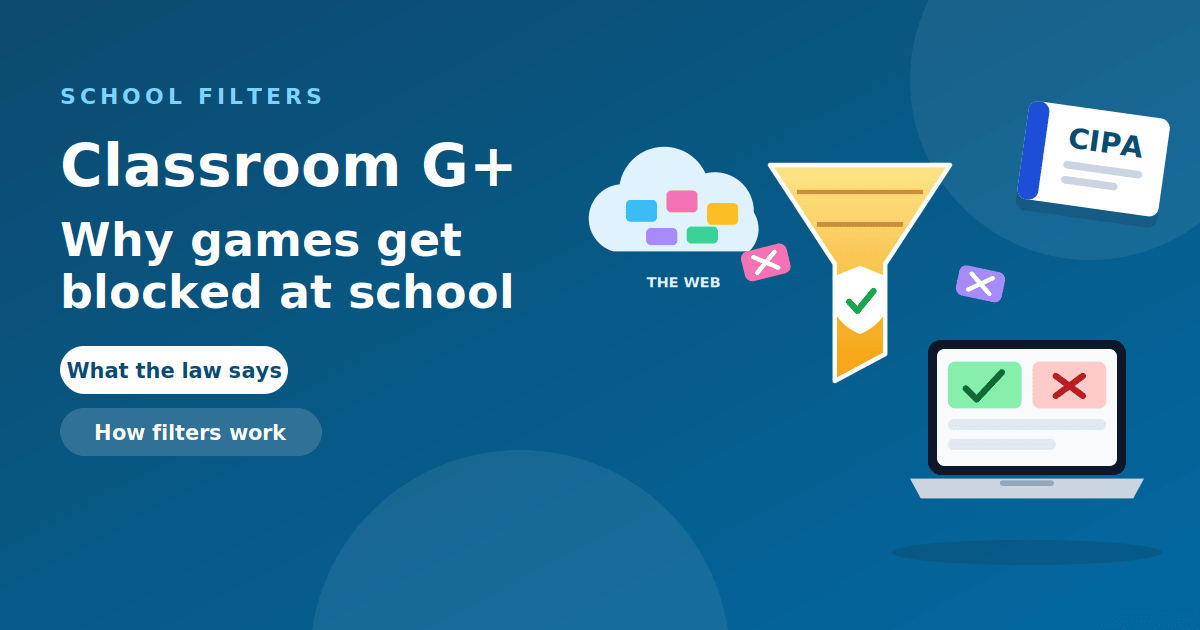
In the US, the Children's Internet Protection Act (CIPA) is the main reason most schools filter. According to the FCC, CIPA applies to schools and libraries that receive discounts through the E-Rate program. To receive that support, they must certify that they have adopted and are enforcing an internet safety policy that includes technology protection measures such as filtering or blocking.
The same FCC page adds two requirements for schools: the policy must include monitoring the online activities of minors, and it must cover educating students about appropriate online behavior. The Universal Service Administrative Company, which runs the E-Rate program, lists the same requirements. CIPA does not name games, and it gives schools broad discretion over how they apply filtering. That is why one school may block games and another may not.
How school web filters work
School filters are tools that decide, request by request, whether a student's device may load a page. Most combine several methods:
- Category lists. Sites are sorted into categories such as adult content, gambling, social media and games, and schools choose which categories to block.
- Allow and block lists. Administrators can allow or block individual sites, and teachers may be able to apply temporary rules to a class session. GoGuardian describes this in its guide to Scenes.
- Automatic classification. Vendors use software to categorize new sites. GoGuardian says its filtering uses machine learning to analyze site content and context, and that it filters by category, URL, keyword and more.
- Device management. On school Chromebooks, the district uses the Google Workspace admin console to control which apps and extensions are installed and which sites are allowed.
Products such as GoGuardian, Securly and Lightspeed Systems are commonly used for this, and many run as a Chrome extension pushed to the device by the school.
Why games are blocked
- Focus. Games compete with lessons, and schools want classroom time used for learning.
- Bandwidth. Many students on one network can slow it down.
- Security. Ad-supported game sites are a common source of pop-ups, misleading buttons and tracking. The FTC lists fake security warnings and bogus ads as common ways malware spreads.
- Policy. Schools write acceptable use policies, and games are commonly addressed in them.
For the safety side, see our guide to whether unblocked games are safe.
Monitoring on school devices
Students should know that school-managed devices are often monitored. Guides written for parents describe tools that log website visits and search activity, and some can capture periodic screenshots that administrators can view. Attempts to open blocked pages may be recorded even when the page does not load. Policies on what is collected, and whether monitoring continues outside school hours, are set by each district.
The practical point is simple: a school device is not a private device. Anything done on it can be seen by the people who manage it.
What students can do
- Read the acceptable use policy. It states what is allowed and what the consequences are.
- Ask about wrongly blocked sites. If an educational site is blocked by mistake, ask a teacher or the IT team to review it. This is a normal request.
- Play at home or on your own device when allowed. Our list of safe free browser games is a good place to start.
- Avoid shortcuts that need installs or sign-ins. They put your accounts and your device at risk, and they may break school rules.
For parents and teachers
- Ask whether filtering and monitoring continue outside school hours and what the school collects.
- Ask if there is a parent portal. Some vendors offer parent-facing tools, and a school-issued Chromebook is managed by the school's account, not yours.
- Teach students why filters exist, not just that they exist. Understanding the reasons, including the legal ones, makes the rules easier to follow.
- Offer allowed alternatives for breaks, such as educational or puzzle games the school has approved.
Frequently asked questions
Is Classroom G+ part of Google Classroom? No. It is a search phrase, not a Google product.
Why do schools block games? To protect focus, bandwidth and security, and because filtering is part of how many schools meet CIPA.
Is school filtering required by law? For schools that receive E-Rate discounts, yes. They must certify an internet safety policy with filtering.
Can a school see what I do on a school device? Often yes. Tools exist to log browsing and searches, and CIPA requires monitoring of minors' online activity for schools.
What should I do if a useful site is blocked? Ask your teacher or IT team to review it.
Is it illegal to play games at school? Not in itself, but it may break school rules.
The takeaway
"Classroom G+" is a search phrase, not part of Google Classroom. Schools block games because of focus, bandwidth, security and policy, and because CIPA requires many of them to filter. Filters sort sites into categories, devices are often monitored, and the right response to a wrongly blocked site is to ask for a review. For breaks, choose allowed or at-home options.